


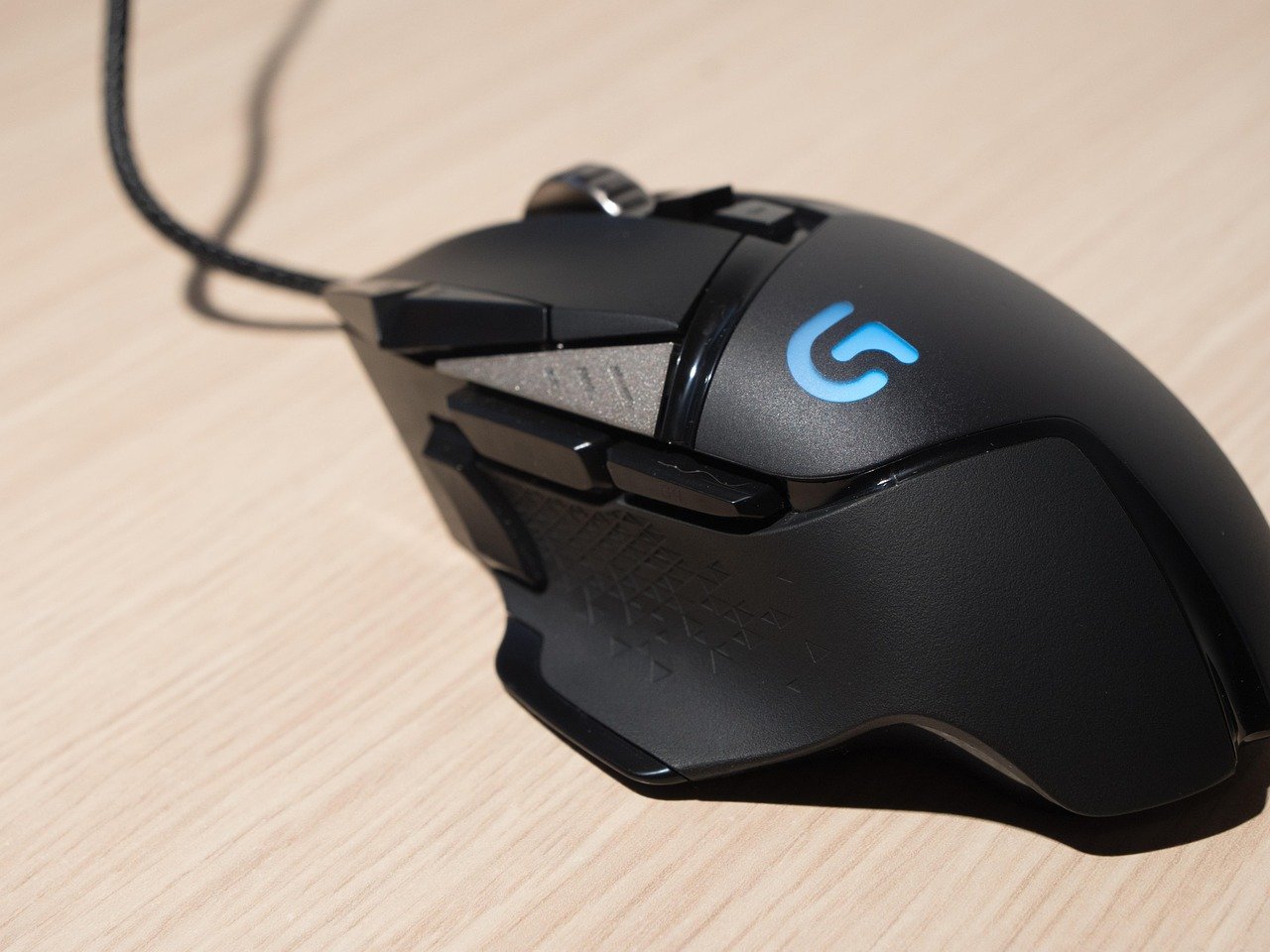
Logifetch is a name that can refer to more than one Logitech-related technology, which can make it confusing when you encounter the term on a Windows computer. In 2026, the name is used by an open-source Windows utility designed to customize certain Logitech mouse controls, while older Windows systems may show LogiFetch or LOGIFETCH in connection with Logitech Download Assistant.
The distinction is important because these are not necessarily the same thing. The current open-source Logifetch project is designed for specific Logitech hardware customization, whereas the older LOGIFETCH reference is associated with Logitech’s Download Assistant and LogiLDA.dll.
What Is Logifetch?
The current Logifetch project is a small collection of local Windows tools created to customize Logitech mouse controls. Its primary purpose is to reapply selected temporary mouse mappings after a compatible Logitech mouse reconnects through Bluetooth Low Energy.
According to its project documentation, Logifetch works with the Logitech MX Master 4, Windows 10, and Windows 11, using Logitech’s vendor HID++ communication. It can also turn selected mouse buttons into Windows keyboard shortcuts or launch specific applications.
The project is intentionally narrow in scope rather than attempting to replace Logitech’s complete device-management software.
What Does Logifetch Do?
Logifetch focuses on maintaining customized Logitech mouse controls.
One of its key functions is restoring temporary HID++ button mappings when the supported mouse reconnects over Bluetooth. This can be useful when a device loses temporary customization after disconnecting or reconnecting.
It can also associate mouse controls with Windows shortcuts or application launches. For example, the project’s default configuration can map a mouse control to Win + Tab or launch an application such as Everything Search.
Which Logitech Devices Does Logifetch Support?
Current Logifetch support is deliberately limited.
The project’s documentation identifies the Logitech MX Master 4 as its supported mouse and specifies Bluetooth Low Energy as the connection method. It supports Windows 10 and Windows 11.
Other Logitech mouse models, receiver connections, macOS, and Linux are not currently supported by the project. Although hardware identifiers can be changed experimentally, the documentation cautions that doing so requires additional investigation of the device’s reports and configuration system.
How Does Logifetch Work?
Logifetch communicates with the supported mouse through Logitech’s vendor-specific HID++ interface.
HID++ is Logitech’s protocol for communicating with compatible input devices and exposing functionality beyond standard mouse and keyboard controls. Logifetch uses this communication path to inspect and reapply selected device mappings.
The background agent can start when the user logs in and continue running while the supported mouse is connected. The project uses a per-user scheduled task rather than a Windows service because its mouse and keyboard actions need to interact with the user’s desktop session.
Logifetch Installation
The current Logifetch project requires Python 3 as its dependency.
Its installation script can be run from a regular, non-administrator PowerShell session. The installer places the application under the user’s local application-data directory, preserves an existing configuration file, creates a per-user scheduled task, and starts the agent.
Because the software is specifically designed for Windows desktop interaction, users should review the project’s documentation and source code before installing it, particularly if they intend to modify its configuration or use unsupported hardware.
Logifetch Configuration
Logifetch uses a JSON configuration file to define its behavior.
The configuration contains sections for temporary remapping, custom actions, general settings, and optional haptic-related functionality. This approach gives users a relatively transparent way to inspect and change the tool’s behavior rather than relying entirely on a graphical configuration interface.
Users can define actions such as keyboard shortcuts or application launches. The project supports common modifier keys including Alt, Ctrl, Shift, and Windows, along with navigation, editing, system, and function keys.
What Is the Older “LOGIFETCH” Error?
There is another meaning of LOGIFETCH that appears in older Windows troubleshooting discussions.
If you encounter an error such as:
“C:\Windows\System32\LogiLDA.dll — Missing entry: LOGIFETCH”
this is generally associated with Logitech Download Assistant, rather than the current open-source Logifetch project. Microsoft Q&A discussions identify the error as being caused by Logitech Download Assistant and LogiLDA.dll.
This older issue can appear after Windows or Logitech software changes leave an outdated startup entry behind.
Why Does the LogiLDA.dll Error Appear?
The older error generally occurs when Windows attempts to start Logitech Download Assistant but encounters a problem with its DLL or startup configuration.
Microsoft Q&A records describe cases where the startup entry references LOGIFETCH, while the related Logitech component is LogiLDA.dll. Other documented cases involve Logitech Download Assistant remaining in Windows startup after software changes.
Therefore, seeing LOGIFETCH in an old Windows startup error does not necessarily mean that the modern Logifetch project is installed.
Is Logifetch Malware?
The name itself does not indicate malware.
The current Logifetch project is an open-source Windows utility whose repository publicly describes its purpose, supported hardware, installation process, configuration, and MIT license.
However, users should always verify the location and source of an executable before deciding whether a particular process is trustworthy. A random executable named logifetch.exe obtained from an unknown website should not automatically be assumed to be the legitimate open-source project.
Should You Disable Logifetch?
If you intentionally installed the current Logifetch project and use its Logitech mouse customizations, disabling it will likely prevent its background remapping and automation functions from operating.
If you don’t use the software or don’t need its customizations, removing its startup mechanism can be reasonable. The project’s documentation provides an uninstall option that removes the agent, its scheduled task, and its local configuration.
If you’re instead dealing with an old LogiLDA.dll / LOGIFETCH startup error, the appropriate solution is different because that issue involves Logitech Download Assistant rather than the current Logifetch project.
Logifetch vs Logitech Software
The current Logifetch project is not intended to replace all Logitech software.
Its stated purpose is to provide a small, local alternative for particular controls that the developer wanted to customize independently. It focuses specifically on selected MX Master 4 functions and reconnect behavior.
Logitech’s own software ecosystem is much broader and can provide device configuration and other features across supported Logitech products.
For most users, official Logitech software remains the more appropriate option when they need broad device-management functionality. Logifetch is more relevant to users who specifically want its narrow customization capabilities.
Common Logifetch Problems
Users can encounter different problems depending on which “Logifetch” they mean.
For the modern open-source project, compatibility is a major consideration because support is currently limited to the MX Master 4 over Bluetooth Low Energy on Windows 10 and 11. Using a different Logitech mouse or connection method may not work as expected.
For the older LogiLDA issue, the problem is more likely to involve an obsolete Logitech Download Assistant startup entry, a missing DLL, or a mismatch between installed Logitech components and Windows startup configuration.
How to Troubleshoot Logifetch
Start by determining which Logifetch you are actually dealing with.
If you intentionally installed the open-source project, check whether your mouse is an MX Master 4 and whether it is connected through Bluetooth Low Energy. Then review the project’s JSON configuration and installation documentation.
If Windows instead displays a LogiLDA.dll missing-entry error, check whether Logitech Download Assistant is present in your installed programs or startup items. Microsoft Q&A recommends removing or disabling the obsolete Logitech Download Assistant when it is responsible for the error.
Avoid deleting random DLL files from the Windows System32 directory simply because their names appear in an error message. It is safer to identify the application responsible first.
Is Logifetch Useful in 2026?
For the specific hardware and workflow it supports, Logifetch can be useful.
Its main advantage is that it provides a lightweight, configurable way to maintain selected Logitech mouse customizations without attempting to reproduce an entire peripheral-management suite. The project also keeps its configuration in a readable JSON file and provides its source code publicly.
Its limited hardware compatibility is also its biggest restriction. If you use another Logitech model, macOS, Linux, or a Logitech receiver rather than the supported Bluetooth connection, the current project may not meet your needs.
Frequently Asked Questions
What is Logifetch?
Logifetch is currently the name of an open-source Windows utility for customizing selected controls on the Logitech MX Master 4 over Bluetooth Low Energy.
Is Logifetch made by Logitech?
The current open-source Logifetch project is a separate project and should not be confused with Logitech’s official software.
What is LOGIFETCH in LogiLDA.dll?
In older Windows errors, LOGIFETCH refers to an entry associated with Logitech Download Assistant and the LogiLDA.dll component.
Does Logifetch work on Windows 11?
Yes. The current project specifically lists Windows 10 and Windows 11 as supported operating systems.
Does Logifetch support every Logitech mouse?
No. Current documentation specifically lists the Logitech MX Master 4 as the supported mouse. Other models are not officially supported by the project at this time.
Can I uninstall Logifetch?
Yes. The current project’s documentation includes an uninstall process that removes its scheduled task, agent, and local configuration.
Final Thoughts
Logifetch has two important meanings worth distinguishing in 2026. The modern open-source project is a specialized Windows utility for customizing Logitech MX Master 4 controls, while older LOGIFETCH startup errors are associated with Logitech Download Assistant and LogiLDA.dll.
If you encounter Logifetch on your computer, don’t immediately assume that it is suspicious or that it belongs to Logitech’s official software. First check the file location, installation source, associated application, and exact error message.
Understanding this distinction makes troubleshooting much easier and helps you choose the appropriate solution without unnecessarily deleting files or changing Windows system settings.
