


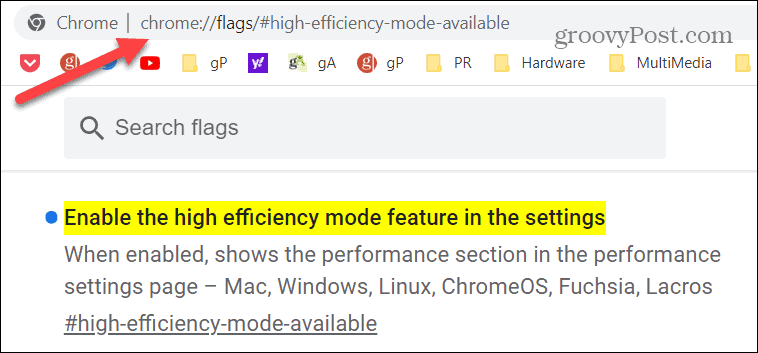
Chrome://flags is a hidden experimental settings page in Google Chrome that allows users and developers to test browser features that are not enabled by default. It provides access to experimental options that can change how Chrome looks, behaves, or handles certain browser technologies.
Unlike the regular Chrome Settings page, chrome://flags is primarily intended for experimentation and testing. Google describes Chrome flags as temporary features that can change, break, or be removed without notice, so users should understand what a flag does before changing it.
What Is Chrome://Flags?
Chrome://flags is an internal Chrome page containing experimental feature controls known as Chrome flags. These flags can allow users to test features or browser changes before they become part of the standard Chrome experience.
The available flags depend on the Chrome version, operating system, and stage of development. A feature that appears in one version may later become enabled by default, change its behavior, or disappear completely.
Chrome flags are therefore different from normal browser settings. Regular settings are designed for everyday customization, while flags are primarily intended for testing experimental functionality.
How to Open Chrome://Flags
Opening the Chrome flags page is straightforward. Launch Google Chrome on a supported device and enter chrome://flags directly into the address bar.
After pressing Enter, Chrome displays its experimental features page. You can browse the available options or use the search field to locate a particular flag.
Each available flag normally includes a description and a drop-down menu where its state can be changed. After modifying a flag, Chrome generally requires a relaunch before the change takes effect.
How Chrome Flags Work
A Chrome flag acts as a switch or configuration option for an experimental browser feature. Depending on the feature, the available choices may include Default, Enabled, or Disabled.
Selecting Enabled tells Chrome to activate the experimental behavior when supported. Selecting Disabled tells Chrome not to use that behavior, while Default returns control to Chrome’s normal configuration for that particular flag.
Because experimental features can change between Chrome releases, the same flag may behave differently over time. Some flags can eventually disappear after a feature becomes part of Chrome, while others may be removed if development is discontinued.
How to Enable a Chrome Flag
To enable a flag, open chrome://flags and search for the feature you want to test.
Once you locate it, open the corresponding drop-down menu and select Enabled. Chrome will normally display a prompt to relaunch the browser.
Click Relaunch to restart Chrome and activate the selected change. Google recommends changing one flag at a time so that troubleshooting is easier if something goes wrong.
How to Disable a Chrome Flag
Disabling a Chrome flag uses almost the same process. Open chrome://flags, search for the relevant flag, and change its setting to Disabled.
Afterward, relaunch Chrome so the browser can apply the new configuration. If you are unsure about a change you previously made, returning the flag to Default is often preferable because it allows Chrome’s normal configuration to control the feature.
How to Reset Chrome Flags
Chrome provides a convenient way to restore experimental flags to their default states. Open chrome://flags and select the Reset all option.
Chrome will then restore the flags to their default configuration. You should relaunch the browser afterward so the changes take effect. Google specifically recommends this approach when experimental flag changes cause browser problems.
Resetting the flags can be especially useful when Chrome begins behaving unexpectedly after several experimental settings have been changed.
Why Do People Use Chrome Flags?
Chrome flags are useful for experimentation, development, troubleshooting, and testing upcoming browser technologies. Web developers can use them to investigate how websites behave with experimental browser capabilities.
They can also be useful when Chrome is developing a new feature and wants to make it available to selected users for testing before broader deployment.
Google’s developer documentation explains that Chrome flags have been used to let users experiment with functionality before it becomes available by default. Some experimental features eventually become standard Chrome features after development and testing.
Chrome Flags for Developers
Developers are one of the primary audiences for experimental Chrome flags. A developer may need to test a website against an upcoming browser feature or investigate how a new web platform capability works.
Chrome flags can provide access to experimental APIs, rendering behavior, performance experiments, and other browser functionality. This makes them useful when developing websites and web applications that need to work with evolving web standards.
However, Google recommends testing websites in Chrome’s normal Stable configuration as well, because most users experience websites without experimental flags enabled.
Chrome Flags and Performance
Some Chrome flags have historically been associated with performance, graphics, rendering, networking, or other technical behavior. This has led to many online guides describing certain flags as performance-boosting settings.
However, there is no universal Chrome flag that guarantees faster browsing for every computer. Experimental settings can have different effects depending on the Chrome version, operating system, hardware, drivers, websites, and workload.
A flag that improves one particular test or workload can potentially cause instability or provide no noticeable improvement in everyday browsing. For this reason, performance-related flags should be treated as experiments rather than guaranteed optimization tools.
Chrome Flags and Graphics
Some experimental Chrome features relate to graphics and hardware acceleration. These can be relevant to users testing modern rendering technologies, WebGPU-related functionality, or other graphics capabilities.
Graphics flags should be changed carefully because browser rendering depends on the operating system, graphics hardware, drivers, and Chrome’s implementation.
If graphics-related experimentation causes visual problems, crashes, or unusual browser behavior, returning the relevant flags to Default or using Reset all can help restore the standard configuration.
Chrome Flags on Android
Chrome flags can also exist on Android, although the available flags can differ from desktop Chrome. Google and Chromium documentation indicate that flag availability depends on the platform and Chrome version.
This means that instructions found online for Windows, macOS, Linux, or ChromeOS may not necessarily apply to Android. A particular flag can be available on one platform while being absent or already enabled by default on another.
Users should therefore check the actual chrome://flags page on their device rather than assuming that every online flag list is still applicable.
Chrome Flags on ChromeOS
ChromeOS also provides experimental feature controls through chrome://flags. Google’s ChromeOS documentation explains that users can navigate to this page and select available flags, which may appear in Default, Enabled, or Disabled states.
Because ChromeOS integrates the browser closely with the operating system, experimental changes should be approached carefully. Features that affect security, graphics, networking, or system behavior may have consequences beyond a simple visual change.
Chrome Flags vs Chrome Settings
Chrome flags and Chrome’s standard Settings page serve different purposes.
The normal chrome://settings area is designed for configuring features that are officially available to users. These controls cover areas such as privacy, search, appearance, downloads, passwords, languages, and other everyday browser preferences.
Chrome flags, on the other hand, are primarily designed to expose experimental features and testing options. Google explicitly distinguishes flags from normal Chrome settings.
For everyday browser customization, standard Chrome Settings should generally be preferred. Chrome flags are more appropriate when there is a specific experimental feature or troubleshooting reason for using them.
Chrome Flags vs Command-Line Flags
Chrome flags available through chrome://flags should not be confused with command-line switches.
Chrome and Chromium also support command-line options that can enable or modify browser functionality. Developers can launch Chrome with specific switches, and some features can be controlled through either a flag or a command-line configuration.
Chromium documentation notes that command-line switches and chrome://flags are separate configurations, and command-line settings may not always be reflected accurately on the flags page. The chrome://version page can be used to inspect the command line used by the current Chrome instance.
Are Chrome Flags Safe?
Chrome flags are not automatically dangerous, but they are experimental. Google warns that changing flags can potentially result in browser problems, loss of browser data, or compromised security and privacy.
For this reason, users should avoid enabling flags simply because an online article claims that they will make Chrome faster, safer, or better.
The safest approach is to read the description of a flag, understand its purpose, change one setting at a time, and remember how to return it to Default if necessary.
Can Chrome Flags Break the Browser?
Yes, experimental settings can cause problems. Depending on the feature, changing a flag can result in crashes, unexpected interface behavior, website compatibility issues, performance problems, or other instability.
If Chrome starts behaving incorrectly after changing flags, Google recommends returning the flags to their default configuration and relaunching the browser.
This is one reason why keeping track of the changes you make is useful. If you modify several flags simultaneously, identifying the source of a problem can become more difficult.
How to Troubleshoot Chrome Flags
When troubleshooting an issue related to Chrome flags, start by identifying the most recent experimental setting you changed.
Return that flag to Default and relaunch Chrome. If the problem continues, use the Reset all option on the chrome://flags page and relaunch the browser.
Google also recommends keeping Chrome updated because browser updates include bug fixes and security improvements. If resetting the flags does not resolve the issue, Chrome’s standard settings reset options may provide another troubleshooting step.
Chrome Beta and Experimental Features
Users interested in testing upcoming Chrome features do not always need to rely on individual flags. Google also provides Chrome Beta for users who want to test experimental features before they reach the stable browser.
Chrome’s current documentation explains that Chrome Beta includes an Experiments interface where users can enable selected experimental features and provide feedback.
For people who regularly test new browser functionality, using an early-release browser channel can be more appropriate than changing numerous flags in a primary Stable installation.
Why Chrome Flags Change or Disappear
Chrome flags are connected to an ongoing development process. A feature may begin as an experiment, receive testing and feedback, become enabled by default, or eventually be removed.
Consequently, an old Chrome flags guide may contain names or settings that no longer exist. Google specifically notes that flags are temporary and can change or be removed without notice.
This is particularly important when following online tutorials. Always verify that a flag is actually present in your current Chrome version before attempting to configure it.
Chrome Flags and Privacy
Some experimental browser features can affect privacy or security behavior. This is why Chrome displays warnings before users change experimental configurations.
A privacy-related flag should not be enabled merely because its name sounds protective. Experimental security and privacy features can have complex technical consequences and may not provide the protection suggested by unofficial online guides.
For normal privacy management, Chrome’s standard privacy and security settings are generally more appropriate than experimental flags.
Chrome Flags for Web Testing
Chrome flags can be valuable for web developers who need to test how websites behave under experimental browser conditions.
Developers can use them to investigate upcoming APIs or browser behavior and identify compatibility problems before a feature becomes widely available.
However, a website should also be tested without experimental flags. Chrome’s developer documentation emphasizes that Stable Chrome without modified flags represents the environment experienced by the majority of Chrome users.
Common Mistakes When Using Chrome Flags
One common mistake is enabling several flags at the same time. If Chrome becomes unstable afterward, it can be difficult to determine which setting caused the problem.
Another mistake is assuming that every flag listed in an old article is still available. Flags frequently change as Chrome development progresses.
A further mistake is treating experimental flags as permanent settings. Google explicitly states that Chrome flags are temporary and are not intended as permanent methods for changing how Chrome works.
Best Practices for Chrome://Flags
The safest way to use Chrome flags is to make small, deliberate changes. Read the description of each flag before changing it and avoid enabling settings whose purpose you do not understand.
Change one flag at a time and relaunch Chrome to test the result. If the change produces unwanted behavior, return it to Default or use Reset all.
For important browsing, work, or business environments, avoid relying on experimental configurations. Google also advises enterprise administrators not to use Chrome flags in production and instead use appropriate enterprise management policies.
Final Thoughts
Chrome://flags provides an interesting way to explore experimental browser functionality and can be particularly valuable for developers, testers, and technically curious users.
At the same time, it should not be treated as a collection of guaranteed performance hacks or permanent Chrome settings. Flags can change, disappear, conflict with other configurations, or introduce unexpected behavior.
The best approach is to use chrome://flags selectively, understand what each experimental option does, and know how to restore Chrome’s default configuration. With those precautions, Chrome flags can be a useful tool for testing new browser capabilities and investigating technical issues.
