


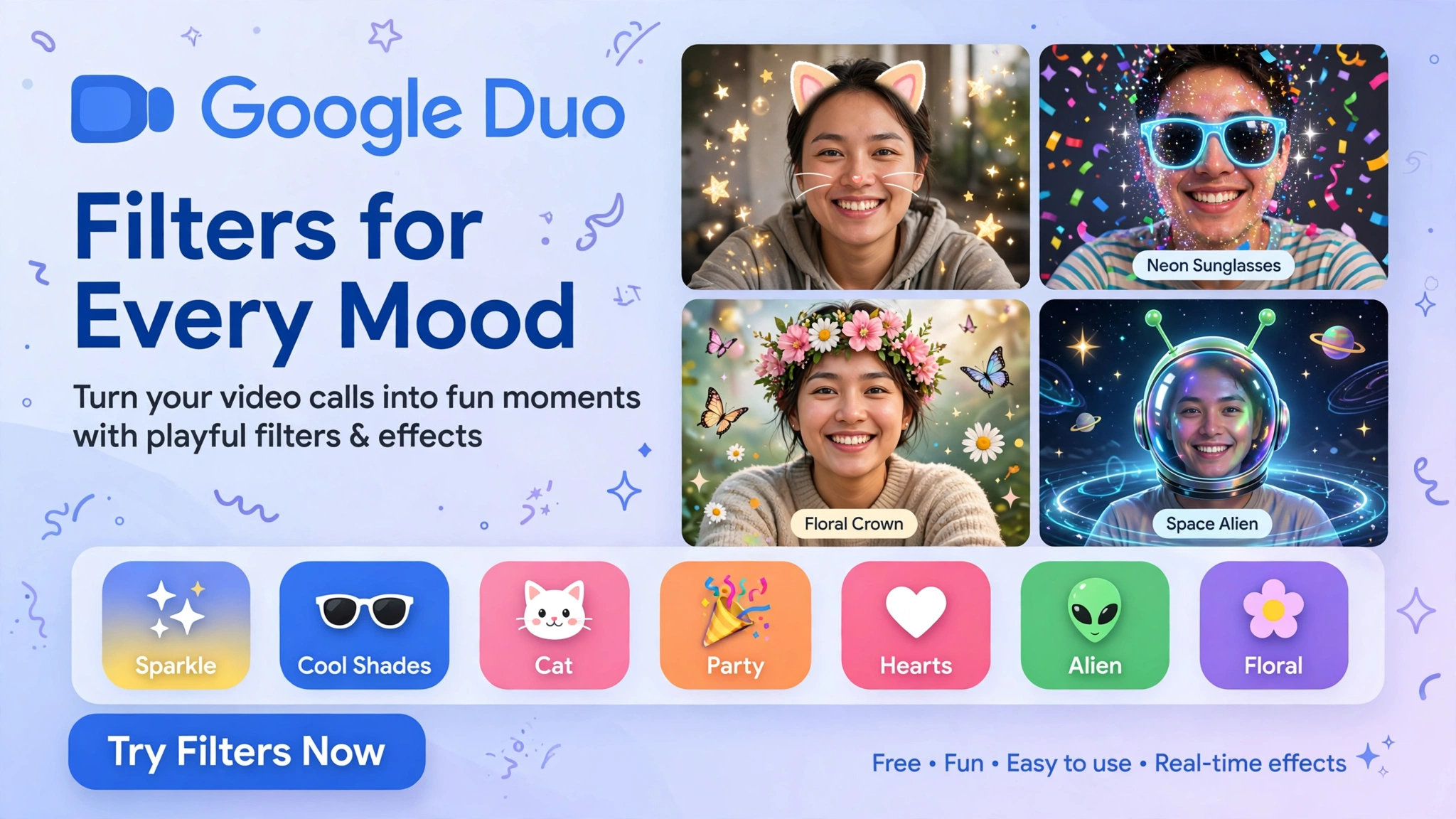
Google Duo filters allow users to add fun visual effects, change their appearance, and customize their video calls with playful animations and backgrounds. Although Google Duo was merged into Google Meet, many of its familiar video-calling features have continued in the Meet app, where users can access filters, backgrounds, and other visual effects on supported devices.
If you want to use Google Duo filters today, open Google Meet, start or join a video call, tap Effects, and choose a filter or visual effect. The available options may vary depending on your device, operating system, account type, and app version.
What Are Google Duo Filters?
Google Duo filters are visual effects that modify how you appear during a video call. They can change the look of your video, add playful character effects, or create a more entertaining experience when talking to friends and family.
Depending on the available features, you may be able to apply colorful styles, animated effects, face filters, or other visual enhancements. These options make casual conversations more engaging and can add a little personality to an otherwise ordinary video call.
Google’s current video-calling experience also offers background effects and appearance adjustments. These tools serve slightly different purposes: filters change the visual style of your video, backgrounds modify what appears behind you, and appearance controls can improve lighting or refine how you look on camera.
How to Use Google Duo Filters on Android
Since Google Duo has transitioned to Google Meet, Android users should look for video effects in the current Meet app rather than relying on instructions written exclusively for the older Duo interface.
The process is straightforward on supported Android devices, although the exact button placement may vary slightly between versions.
-
Open the Google Meet app on your Android phone.
-
Start a video call or select a meeting to join.
-
Look for the Effects option near your video preview.
-
Tap Effects to open the visual customization panel.
-
Select a category such as Filters, Backgrounds, or Styles, depending on the options displayed.
-
Tap the effect you want to use and check how it looks in your preview.
-
Close the effects panel when you are satisfied with your selection.
Your chosen effect should appear on your video feed, allowing other participants to see the modified appearance during the call. Some effects may require you to follow additional on-screen instructions before they become active.
How to Use Google Duo Filters on iPhone
iPhone users can also access supported video effects through Google Meet. The general process is similar to Android, although the available filters and interface may differ depending on the device and software version.
Open Google Meet, choose a contact or meeting, and enter the video-call preview or an active call. Tap Effects, browse the available filter options, and select the effect you want to apply.
Before starting an important conversation, check your video preview to ensure the filter looks appropriate. If the Effects option is missing, update the app and check whether your device supports the feature.
Google’s historical instructions for Duo-era effects specified iOS 14 or later and an iPhone 8 or newer for certain features. Current availability may depend on the particular effect and the version of Google Meet installed.
Different Types of Video Call Effects
Google’s video-calling tools include several types of effects, each designed to change a different aspect of your video.
Face Filters and Fun Effects
Face filters can give your video a playful appearance by adding stylized features, character-inspired visuals, or other decorative elements. These effects are particularly suitable for informal conversations with friends and family.
Not every filter previously available in Google Duo will necessarily appear in the current Meet app. The selection may change over time, and some effects may be limited to particular devices or accounts.
Background Effects
Background effects allow you to blur your surroundings or replace them with an available image. This can be useful when you are calling from a busy room, working from home, or simply want a cleaner-looking video.
Keep in mind that virtual backgrounds are not a guarantee of privacy. Movement, camera framing, or imperfect background detection can sometimes reveal parts of your surroundings.
Styles and Appearance Adjustments
Styles can alter the overall look of your video, while appearance controls may offer options such as portrait touch-up, lighting adjustments, or improved framing on eligible devices.
These tools can be helpful for professional calls when you want a more polished presentation without using an exaggerated face filter. Availability depends on your device and account, and some advanced features may require an eligible subscription.
Why Are Google Duo Filters Not Showing Up?
If you cannot find filters in Google Meet, several factors may explain the problem. The original Duo interface is no longer the standard experience, so older tutorials may show buttons or menus that do not match your current app.
First, make sure you are using Google Meet and that the app is updated. Open a video call and check the Effects option near your video preview, since the location may differ from the controls shown in older screenshots.
Second, check your device compatibility. Some effects require a supported operating system or sufficiently capable hardware, and not every visual feature is available on every phone.
Finally, consider your account type and settings. Certain features may be restricted by a Google Workspace administrator or limited to specific account plans. If the option remains unavailable, try a basic background effect or check Google’s current Meet settings for your device.
How to Turn Off Filters During a Video Call
Removing a filter is usually as simple as opening the Effects panel again and selecting the option to remove or disable the active effect. Depending on the interface, you may see a No effects option or a control for clearing applied visual effects.
If you have applied several effects, look for the effect stack or the Remove all control, where available. This lets you return to your normal camera view without ending the call.
If the app becomes slow or your phone heats up, turning off visual effects may also help reduce the processing load and battery consumption. Google notes that backgrounds and visual effects can affect device performance.
Are Google Duo Filters Safe to Use?
Google explains that its video-call Effects and Portrait Mode process facial video data in real time to apply visual enhancements. According to its privacy documentation, facial data used for these effects is not stored on the device or Google’s servers as part of this processing.
Nevertheless, it is sensible to review your surroundings before starting a call. A background effect may not conceal every object, and anything visible in your camera feed could be seen by the other participants.
You should also keep the app updated and use the official Google Meet application. Avoid installing unofficial apps that promise to restore discontinued Duo filters, particularly if they request unnecessary access to your camera, microphone, contacts, or other personal information.
Frequently Asked Questions
Is Google Duo still available?
Google Duo was transitioned into Google Meet as part of Google’s effort to combine its video-calling services. Today, Google Meet is the app to look for when accessing supported video-call filters and effects.
Can I use Google Duo filters for free?
Many basic filters and visual effects are available without a paid subscription, but availability varies by feature, device, account type, and settings. Some advanced appearance tools may require an eligible paid plan.
Can I use filters before answering a video call?
Depending on the call interface and device, you may be able to apply effects from a video preview before joining. In other situations, you may need to enter the call before the full range of effects becomes available.
Why does my friend have more filters than I do?
Different devices, operating systems, app versions, account settings, and feature availability can affect which filters appear. Two users may therefore see different selections even when they use the same app.
Do Google Duo filters work on a computer?
Google Meet supports visual effects on compatible computers and browsers. The controls differ from the mobile interface, with options generally available through the Backgrounds and effects panel before or during a meeting.
Conclusion
Google Duo filters made video calls more entertaining by allowing users to experiment with face effects and visual styles. Although Duo has been replaced by Google Meet, supported filters, background effects, and appearance tools remain part of Google’s video-calling experience.
To get started, open Google Meet, enter a video call, and look for Effects. Choose a filter that suits your conversation, check your preview, and remember that the available options depend on your device and account.
