


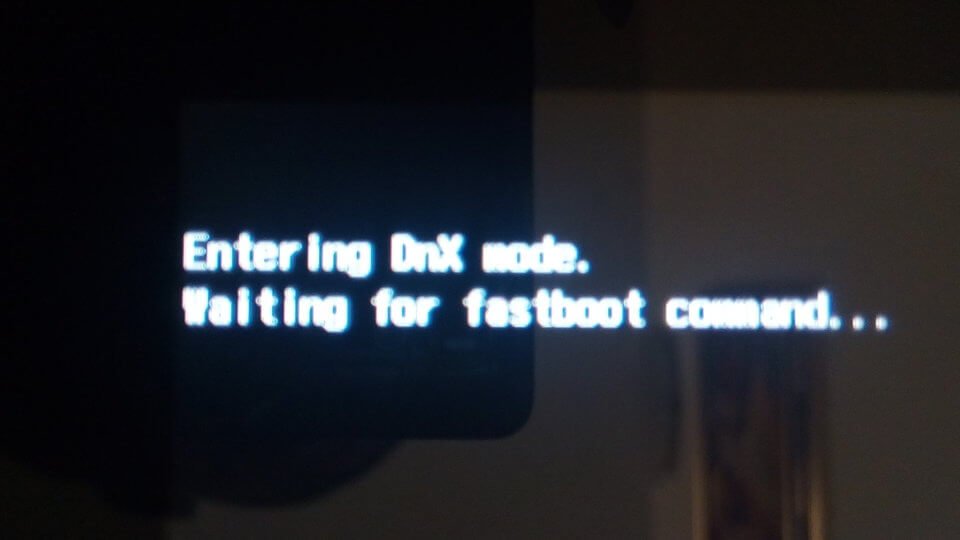
eeing “Entering DNX Mode” followed by “Waiting for Fastboot Command” on an Android device can be confusing, especially when the phone appears stuck and doesn’t boot into the normal operating system.
This message usually indicates that the device has entered a low-level DNX (Download and Execute) mode associated with certain Intel-based Android devices. The system is waiting for a fastboot command from a connected computer instead of continuing with a normal startup.
In many cases, this is not necessarily a permanent hardware failure. It can happen because of an interrupted firmware operation, an accidental key combination, a failed update, corrupted boot software, or an incorrectly initiated fastboot process.
What Does “Entering DNX Mode” Mean?
DNX Mode is a low-level boot mode used by certain devices to facilitate firmware-related operations.
When the screen displays something similar to:
Entering DNX mode
Waiting for fastboot command
the bootloader has entered a state where it is expecting communication from a computer through a USB connection.
This is different from normal Android startup. Instead of loading Android, the device is waiting for commands that can be sent through the fastboot interface.
Why Is My Phone Stuck on “Waiting for Fastboot Command”?
Several situations can cause this message to appear.
One possibility is that the device entered DNX mode accidentally. Certain combinations of physical buttons can trigger special boot modes, particularly while the device is powering on.
Another common reason is an interrupted firmware process. If a system update, firmware installation, bootloader operation, or flashing procedure was interrupted, the device may fail to continue through its normal boot sequence.
A damaged or incompatible boot image can also prevent normal startup. In more serious situations, corrupted firmware or storage problems may be responsible.
Is DNX Mode the Same as Fastboot Mode?
Not exactly.
Fastboot is a communication and flashing protocol commonly used by Android bootloaders. DNX mode is a lower-level state found primarily on certain Intel-based Android hardware.
The message “Waiting for fastboot command” means the device is currently waiting for a compatible fastboot connection or command.
This distinction matters because simply treating every DNX-mode problem like a standard Android fastboot problem may not solve the underlying issue.
First Solution: Force Restart the Device
If you did not intentionally enter DNX mode, the safest first step is usually a forced restart.
Disconnect the USB cable from the phone or tablet if one is connected. Then press and hold the Power button for an extended period, commonly around 10–20 seconds.
Some devices require a different hardware-button combination, so the exact procedure depends on the manufacturer and model.
If the device restarts and loads Android normally, no additional repair may be necessary.
Try a Different Button Combination
If holding Power doesn’t work, the device may require a hardware reset combination.
Depending on the model, combinations involving Power + Volume Up or Power + Volume Down may access another boot menu or trigger a restart.
However, button combinations are not universal. Avoid repeatedly experimenting with combinations if you are unsure which mode they activate, particularly if the device contains important data.
The manufacturer’s documentation for the exact model is the best source for determining the correct recovery procedure.
Check the USB Connection
If the device intentionally entered DNX mode, it may be waiting for a computer to communicate with it.
Use a reliable USB cable and connect the device directly to a computer rather than through an unreliable hub or adapter.
If you are trying to perform a legitimate firmware repair, make sure the computer recognizes the device correctly. A faulty cable, USB port, missing driver, or incompatible flashing utility can prevent communication.
Install the Correct USB Drivers
Windows may require the appropriate device or Android USB drivers before it can communicate with a device in a low-level boot mode.
If the device appears in Windows with an error symbol or as an unknown device, check Device Manager to determine whether a driver is missing.
Do not install random driver packages from untrusted websites. Use the device manufacturer’s official support resources whenever possible.
If You Were Flashing Firmware
If the DNX message appeared while you were intentionally installing firmware, do not immediately disconnect the device or start flashing random files.
First determine exactly what stage the process reached.
Using firmware intended for a different model or hardware revision can make the situation worse. The correct firmware package, flashing utility, drivers, and procedure depend on the exact device.
If you interrupted a firmware installation, restarting the process without understanding the previous failure can potentially overwrite additional partitions or make recovery more difficult.
Check Whether Fastboot Detects the Device
If you’re intentionally troubleshooting the device through fastboot, connect it to a computer with the appropriate Android platform tools installed.
A typical diagnostic command is:
fastboot devicesIf the device is correctly recognized, the command may return a device identifier.
If nothing appears, the problem could involve drivers, the USB connection, the device’s current boot mode, or compatibility between the computer and device.
Do not execute flashing or erase commands simply because the device is detected. Detection only confirms communication; it doesn’t tell you which repair operation is safe.
Avoid Random Fastboot Commands
This is one of the most important precautions.
Fastboot provides commands capable of modifying bootloader-related partitions and other parts of a device’s software. Commands involving flashing, formatting, or erasing can permanently remove data or make a device harder to recover if used incorrectly.
For example, commands that erase partitions should never be executed merely as a general troubleshooting step.
Before using any fastboot command beyond basic device detection, verify the exact command and firmware procedure for your specific device model.
Try Recovery Mode If Available
If you can exit DNX mode and access the device’s recovery environment, recovery mode may provide additional troubleshooting options.
Depending on the device, recovery may allow you to restart the system, clear temporary cache data, perform a factory reset, or install an official update package.
Be careful with factory reset options because they normally erase user data.
If your files are important, avoid selecting a reset or formatting option until you understand whether your data can be preserved.
When a Factory Reset May Help
A factory reset can resolve some software-related boot problems, particularly when corrupted user data is preventing Android from starting.
However, it should not be the first choice if your data is important.
A reset also won’t necessarily fix damaged bootloader or firmware partitions. If the problem originates at a lower software level, reinstalling the correct firmware may be necessary instead.
Could It Be a Hardware Problem?
Yes, although the message itself doesn’t prove that the hardware has failed.
Persistent DNX-mode behavior can sometimes occur when the device has storage problems, damaged firmware, a failing motherboard component, or other hardware faults.
If the device repeatedly returns to DNX mode even after the correct recovery procedure has been followed, professional diagnosis may be appropriate.
This is particularly important if the device recently experienced physical damage, liquid exposure, unexpected shutdowns, or repeated storage-related errors.
Data Loss Considerations
One of the biggest concerns when fixing a device stuck in DNX mode is preserving personal data.
Some recovery procedures are non-destructive, while others can erase user files. Flashing certain partitions may also affect the operating system without necessarily deleting personal data, but this depends entirely on the device and flashing method.
Before performing a factory reset, formatting operation, or firmware flash, determine whether you have a backup and whether the selected procedure is designed to preserve user data.
If the data is extremely important and no backup exists, professional data-recovery or repair assistance may be safer than experimenting with low-level commands.
Common Causes at a Glance
The “Entering DNX Mode Waiting for Fastboot Command” message can result from several different situations.
An accidental button press may cause the device to enter the mode without any actual software damage. An interrupted update or flashing process can leave the device waiting for further commands.
Other possibilities include corrupted boot files, incorrect firmware, incompatible drivers, USB communication problems, or hardware faults.
The correct solution therefore depends on what happened immediately before the message appeared.
How to Prevent DNX Mode Problems
The best prevention strategy is to avoid unnecessary low-level firmware modifications.
Keep the device adequately charged before performing system updates. Don’t disconnect the USB cable during an active firmware operation, and use firmware specifically intended for your exact model and hardware version.
If you regularly work with Android development tools, keep backups of important files and document the original firmware configuration before making bootloader changes.
Frequently Asked Questions
What does “Entering DNX Mode” mean?
It indicates that the device has entered a low-level boot state known as DNX mode and may be waiting for communication or commands from a connected computer.
Why does my phone say “Waiting for Fastboot Command”?
The bootloader is waiting for a fastboot communication session instead of continuing with normal Android startup.
Can I fix DNX mode without a computer?
Sometimes. If the device entered DNX mode accidentally, a forced restart may be enough to return it to normal operation. Other cases require computer-based recovery or firmware tools.
Will DNX mode erase my data?
Simply entering DNX mode does not inherently erase your data. However, some recovery, formatting, factory-reset, or flashing procedures can cause data loss.
Should I use fastboot commands to fix it?
Only if you know the exact device model and understand the specific recovery procedure. Avoid random flashing or erase commands because incorrect commands can cause additional problems.
When should I contact a technician?
Consider professional help if the device repeatedly returns to DNX mode, cannot communicate with a computer, has suffered physical damage, or contains important data that you cannot afford to lose.
Final Thoughts
“Entering DNX Mode Waiting for Fastboot Command” generally means that an affected device has entered a low-level boot environment and is waiting for fastboot communication. It does not automatically mean that the device is permanently bricked.
Start with the least destructive approach: disconnect unnecessary cables, try a proper forced restart, and identify the exact device model before attempting firmware-level repairs.
If the problem appeared during flashing or an update, be especially cautious. Use only the correct firmware and manufacturer-specific instructions, and avoid fastboot erase or flashing commands unless you have verified that they are appropriate for your particular device.
